The 5 Changes in a Financial Plan

Clients want to know what they need to do next.
But what does that actually mean? What do they actually care about? How do you identify those items? And most importantly, how do you communicate it with them?
Here's what I know: Staring at a monte carlo projection won't give you the answers and handing clients a 50 page financial plan won't communicate it.
I know that because I tried it.
One week in July 2024, I sat down and reviewed the advice I’d given over the previous 8 years and couple hundred client cases. A pattern emerged.
Everything fit into one of 5 groups.
- Open or close accounts
- Change where their cash flow was going (e.g., saving or paying debt)
- Change what they invested in
- Change their insurance coverages
- Make document or procedural changes (e.g, update a beneficiary form)
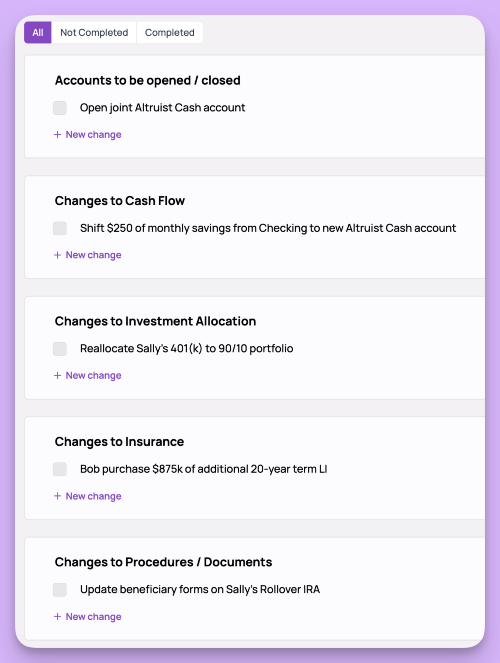
As a test, I started sending clients a word doc attached to an email with my advice grouped into these categories. Clients loved it.
I could have just sent them a task list but something about grouping them into clear categories clicked for them.
When I built the early version of Kerdora, I knew I wanted to include this "page of changes," but what should I call it?
I thought of some fancy names (e.g., Money Moves, Optimization Strategy), but none of those meant anything. It was just a list of changes to be made...so that’s what I called it “Changes to be Made.” Clients have never asked me what that page means.
Something else has happened since I’ve started using this methodology. I realized, the “Changes to be made” page IS the financial plan. Everything else is just context. More on that later.
The Changes to be Made page is a core feature in Kerdora. Throughout the app you can add changes as you note them. We also recognize that there may be other categories or you may prefer slightly different wording so you have the ability to:
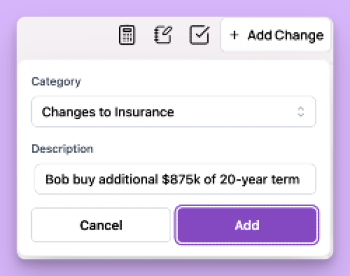
- Add custom groupings
- Change the name of groupings
- Reorder the groupings
- Delete groupings.
You can also filter between Open, Completed, and "All" changes to show the progress you have made since working together.
This is one of the "simplest" features in Kerdora, but like many things in life, one of the most impactful.
That’s why we built in directly into Kerdora.
Taylor Stewart, CFP®
I'm a financial planner in McKinney, TX and founder of Ataroke Wealth, where I provide fee-only financial planning and investment management on an hourly, short-term, and ongoing basis. I work with clients locally and across the country. I also build financial planning software for advisors at Kerdora.
No spam, no sharing to third party. Only you and me.